PARA Work OneNote Planner 2026
Introducing the 2026 PARA Work OneNote Planner to help you stay organized at work with over 50 templates and monthly and weekly calendar pages. Each calendar page has links to Outlook and Google Calendar for quick access. This planner's layout is inspired by Tiago Forte's PARA method (learn more here).
NOTE: If you want to import your planner to a work or school Microsoft account using MacOS or OneNote for Windows 10, workarounds are available here.
✨ FEATURES
50+ templates for project management and planning, productivity, self-evaluation, brainstorming, professional development, meeting minutes, and more
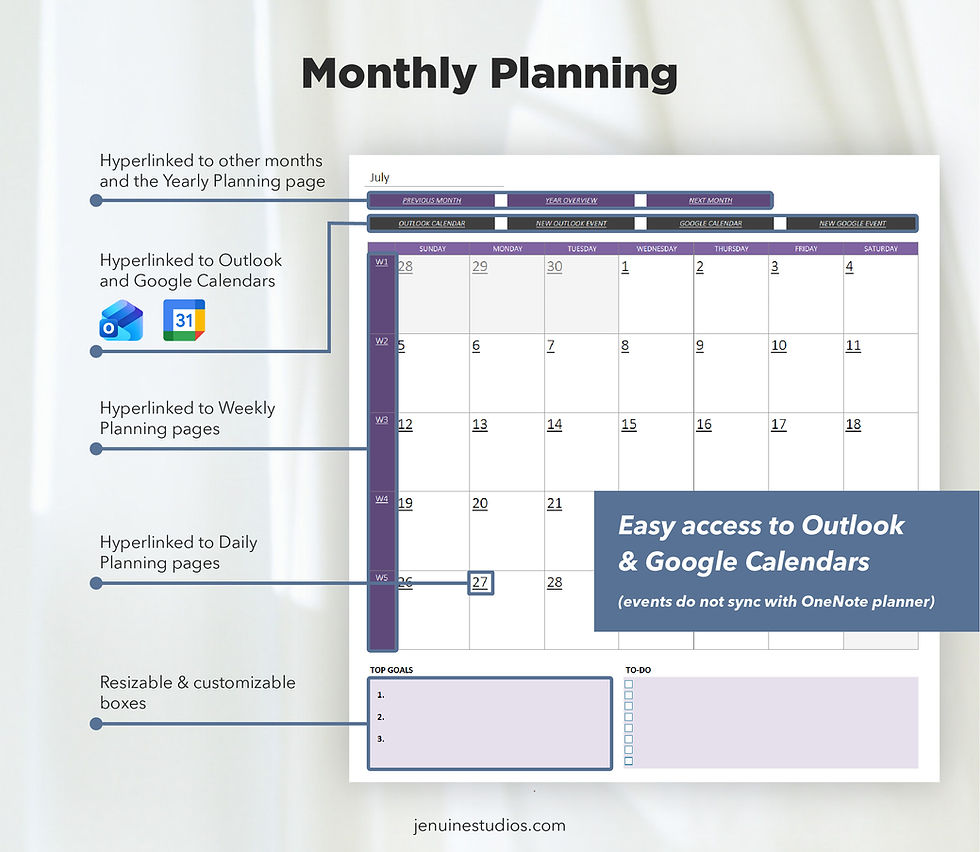
Hyperlinked 2026 calendar layouts for weekly and monthly planning with Sunday and Monday start versions
Includes link shortcuts to your work Outlook and Google calendar
Hyperlinked undated weekly and monthly calendar layouts to reuse annually
Add an unlimited number of your own pages and sections, which you can customize and rearrange
Seamless synchronization across all your devices with the OneNote app installed: Windows computer, Android tablet/phone, iPad, Macs, iPhones
200+ PNG digital stickers to decorate your planner
📓 PLANNER SECTIONS
This planner is set up according to the 4 PARA categories (Projects, Areas, Resources, and Archive - read more about it here). The templates included are listed by theme below:
Goals
1. Goals Tracking Index
2. Goal Setting Template (Single)
3. Goal Setting Template (Multiple)
4. Goals Setting Template (Yearly)
Project Planning
1. Project Conceptualization Index
2. Project Execution Index
3. Project Proposal Outline
4. Finalized Project Outline
5. Product Vision Board
6. Brainstorming with Prompts
7. Reverse Brainstorming
8. Mind Map
9. Research Outline
10. Dotted Paper
11. Slide Deck Outline (Project Introduction)
12. Slide Deck Outline (Blank)
13. Changelog Tracker (Single)
14. Changelog (Multiple)
15. SWOT Analysis (Simple)
16. SWOT Analysis (Detailed)
Project & Task Management
1. Projects List
2. Kanban Board (By Progress Status)
3. Kanban Board (By Category)
4. Kanban Board (By Priority)
5. Kanban Board (By Progress & Category)
6. Task Template (Detailed)
7. Task Template (Simple)
8. To-do List
9. Workflows Index
10. 4 x Examples of Workflow Checklists
Company Wiki
1. Company Brand Guidelines
2. Organization Chart
3. Contacts Directory (Internal)
4. Contacts Directory (External)
5. Password Manager
Reflection & Evaluation
1. Performance Review Index
2. Performance Review (General)
3. Performance Review (Detailed)
4. Post-Project Reflections Index
5. Post-Project Reflection
Professional Development & Networking
1. Courses Index
2. Course Overview
3. Notes Index
4. Note-taking Template (Webinar)
5. Note-taking Template (Workshop)
6. Note-taking Template (Cornell)
7. Networking Index
8. Contact Card
Meetings
1. Meeting Minutes Index
2. Meeting Minutes (Standard)
3. Meeting Minutes (Recurring Internal Meetings)
4. Meeting Minutes (Introductory Meetings)
5. Meeting Agenda
Calendar
Undated weekly and monthly calendar pages
Blank pre-set calendar pages for next year
Blank daily planning layout to duplicate for your needs
Templates & Stickers
Blank copies of all templates
Blank pre-set project pages for easy duplication
All 200+ stickers for easy access
User Guide Section
Various “Getting Started” pages for key planner sections
Collection of FAQs with tutorials and tips
⬇️ DIGITAL DOWNLOAD CONTENTS
2 x OneNote planners (Sunday + Monday start versions)
PNG stickers useable for any digital documents, planners, etc.
Detailed PDF guide showing you how to import this planner